

How to Install & Activate Your eSIM
Complete visual instructions for Apple iPhone, Samsung Galaxy, Google Pixel, and all eSIM devices. Set up automatically with 1-click or scan your QR code before departure.
1-Click Fast Install
Direct in Safari & Chrome
Camera QR Code
Scan from email or screen
Keep WhatsApp Number
Dual-SIM keeps your chats
Instant 5G on Arrival
190+ countries covered
4 Quick Checks Before You Install
Complete these quick prerequisites to guarantee an instant, error-free setup.
Carrier Unlocked
Your phone must not be network-locked by AT&T, T-Mobile, Verizon, or other carriers.
eSIM Compatible
Dial *#06# on your phone. If a 32-digit EID number appears, your hardware supports eSIM.
Stable Wi-Fi
A reliable Wi-Fi or cellular connection is required to authenticate with GSMA eSIM servers during profile download.
Install Before Flying
Install 1–2 hours before departure. Validity only starts when you connect to a local cellular network abroad.
Step-by-Step Installation Showcase
Select your smartphone OS below to view the official visual walkthrough, 1-Click Fast Install options, and camera QR scanning steps.
Automatic 1-Click Installation (Zero Camera Scanning)
When viewing your purchased eSIM in My eSIMs on your phone, tap “Install on iPhone” or “Install on Android” to launch the native carrier setup wizard directly!
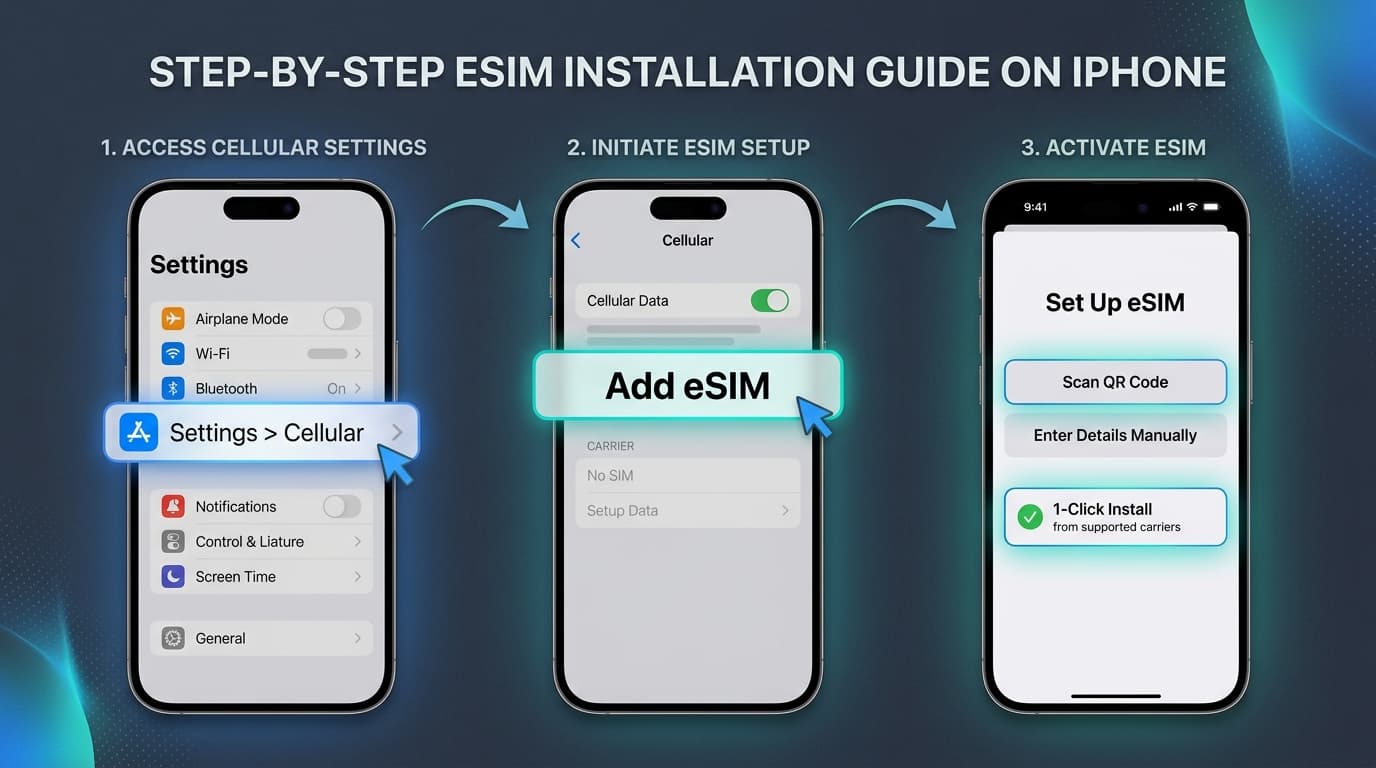
Apple iPhone eSIM Setup
iOS 15, 16, 17, 18+ • iPhone XS through iPhone 16 Pro Max
Open Cellular Settings
Open iPhone Settings and tap Cellular (or Mobile Service in UK/EU).
Tap “Add eSIM”
Select Add eSIM (or Set Up Cellular). If prompted with nearby transfer options, choose Other Options.
1-Click or Scan QR
Tap Install on iPhone in My eSIMs for instant provisioning, or choose Use QR Code and scan with your camera.
Connect on Arrival
Upon landing, select your travel eSIM for Cellular Data and toggle Data Roaming ON.
Important Checklist for Seamless Roaming
Select eSIMFlux Profile
Under Cellular Settings, switch your Mobile Data line to eSIMFlux upon arrival.
Dual SIM Functionality
Keep your physical SIM active for incoming SMS and banking OTPs. WhatsApp stays linked automatically.
Enable Data Roaming
Turn Data Roaming ON specifically for the eSIMFlux profile so it latches onto partner carriers.
Detailed System Settings Navigation
Exact navigation paths for iOS 15–18+, Samsung One UI, and Google Pixel.
Apple iPhone & iPad
iOS 15, 16, 17, 18+ (iPhone XS through 16 Pro Max)
Go to Cellular Settings
Open Settings > Cellular (or Mobile Service in UK/EU).
Tap “Add eSIM”
Tap Add eSIM. If prompted with nearby iPhone transfer, tap Other Options > Use QR Code.
Scan or 1-Click Activate
Scan the QR code from your confirmation screen, or tap “Enter Details Manually” to paste your SM-DP+ code.
Configure Line Labels
Label your home SIM as Primary and label eSIMFlux as Travel. Set Primary as Default Voice Line, and Travel as Cellular Data.
Android (Samsung & Pixel)
Samsung One UI, Google Pixel, Motorola, Xiaomi
Open Connections / Network
Samsung: Settings > Connections > SIM manager.
Pixel: Settings > Network & internet > SIMs.
Tap “Add eSIM”
On Samsung tap Add eSIM. On Google Pixel tap the ‘+’ icon and choose Download a SIM instead.
Scan QR Code
Scan your QR code with the on-screen viewfinder or select Enter activation code to paste the manual LPA string.
Set Primary Mobile Data
Set your Preferred Mobile Data to the eSIMFlux profile. Leave Calls and SMS set to your home physical SIM card.
What to Do the Moment You Land Abroad
Follow these 4 quick steps when your plane lands to connect to the fastest local 5G carrier immediately.
Turn Airplane Mode OFF
Turn off Airplane Mode once your flight has landed on the runway.
Switch Data Line
In Settings > Cellular, confirm Mobile Data is set to your eSIMFlux line.
Turn Data Roaming ON
Toggle Data Roaming to ON on the eSIMFlux profile. This allows local tower authentication.
Turn Home Roaming OFF
Make sure Data Roaming is OFF on your domestic physical SIM to avoid carrier roaming charges.
Handshake Time: It typically takes 45–90 seconds for your phone to establish its initial handshake with the local carrier tower.
Common Questions & Quick Fixes
Solutions to common issues so you never stay offline while traveling.
“Unable to Add eSIM” or Download Error
If you receive an error message when scanning, check the following:
- •Verify your device is carrier-unlocked (Settings > General > About).
- •Ensure you have strong, uninterrupted Wi-Fi during profile download.
- •Each QR code can only be scanned once. Check your list of active SIMs to see if it was already added.
Signal Connected, But No Internet Access
If your phone shows bars but apps won't load upon arrival:
- •Turn Data Roaming ON for the eSIM profile in your cellular settings.
- •Toggle Airplane Mode ON for 10 seconds, then OFF to force a tower refresh.
- •Restart your device. 90% of connectivity delays resolve after a reboot.
CRITICAL: Never Delete Your eSIM
Most travel eSIM profiles are single-use GSMA cryptographic keys. Deleting the eSIM from your phone settings permanently deletes the token and renders the QR code useless.
If you experience any technical difficulties, keep the eSIM installed on your phone and reach out to our 24/7 support team immediately for a profile diagnostic.
Will My WhatsApp or Banking SMS Be Affected?
No. WhatsApp and iMessage are tied to your phone number, not your data source:
- •When WhatsApp prompts “Keep using current number?”, select Yes.
- •Your home physical SIM continues receiving SMS authentication codes and banking OTPs for free.
Everything You Need to Know
Clear answers to the most common questions travelers ask about eSIM setup.
When does my data plan validity actually start?
For almost all destinations, your validity countdown only begins the moment your eSIM connects to a supported partner carrier network abroad. This means you can safely install the eSIM at home or at the airport before boarding without wasting any of your prepaid days.
Can I install my eSIM before I leave home?
Yes, this is strongly recommended! Installing your eSIM while connected to your home Wi-Fi ensures that your profile is already loaded onto your phone. When your plane touches down at your destination, simply switch your data line to the eSIM and you will be online in seconds.
Do I need a Wi-Fi connection to install the eSIM?
Yes. An active internet connection (Wi-Fi or existing cellular data) is required to download the encrypted eSIM cryptographic profile from the GSMA remote server to your device.
Can I keep my regular physical SIM active for phone calls and WhatsApp?
Yes! Modern smartphones support Dual SIM Dual Standby (DSDS). You can keep your primary physical SIM card active to receive phone calls, SMS, and banking 2FA codes, while using the eSIMFlux eSIM exclusively for fast, affordable mobile data. Your WhatsApp will continue working seamlessly on your primary phone number.
Why do I need to turn Data Roaming ON for the eSIM?
Travel eSIMs connect via international roaming partner networks (such as Vodafone, Orange, SoftBank, or AT&T). You must toggle Data Roaming to ON for the eSIM line so your device can authenticate on local partner towers. Remember to keep Data Roaming turned OFF on your home domestic SIM to avoid expensive carrier roaming charges.
What should I do if I get an 'Unable to Add Cellular Plan' error?
This error usually indicates that your device is carrier-locked (contract-locked to your domestic carrier), that your Wi-Fi dropped during download, or that the QR code has already been scanned. Check Settings > General > About > Carrier Lock to verify 'No SIM restrictions', connect to stable Wi-Fi, and try scanning again.
Can I delete and reinstall my eSIM if something goes wrong?
WARNING: Do NOT delete your eSIM! Most travel eSIM QR codes are single-use cryptographic tokens. Once deleted from your phone's settings, the activation token is permanently spent and cannot be restored without a new purchase. If you experience connection issues, keep the profile installed and contact our 24/7 support team.
Can I share my data connection using Personal Hotspot / Tethering?
Yes! Personal Hotspot is fully supported on all eSIMFlux destinations. You can share your high-speed 4G/5G data connection with laptops, tablets, or travel companions without any restrictions.
Ready to Travel Fully Connected?
Pick your destination, complete secure checkout in under 30 seconds, and activate your high-speed 5G data line with 1 click.